
The Image Formats Windows Explorer Won't Preview — But We Will
HEIC, AVIF, JPEG 2000, PSD, and TGA show up as blank icons in Explorer. Our app makes them appear.
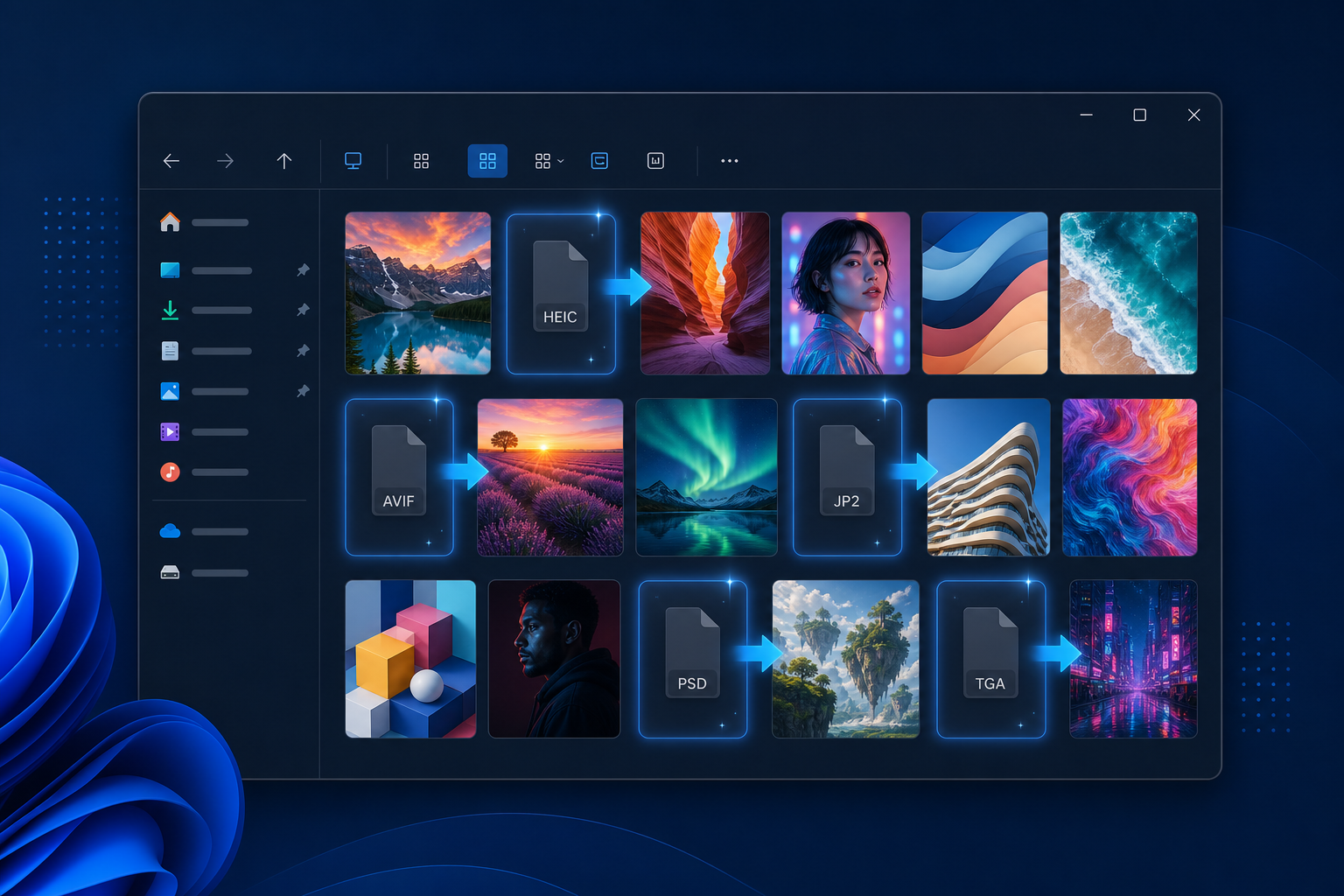
TL;DR
Windows Explorer happily shows thumbnails and a preview pane for JPG, PNG, and GIF — but draws a blank for HEIC/HEIF, AVIF, JPEG 2000 (.jp2), Photoshop (.psd), and Targa (.tga). Legacy File Converter installs a Windows Explorer preview and thumbnail handler for exactly those formats, so they show up in the file grid and the preview pane — offline, with no codec packs from the Store.
You copy a folder of iPhone photos or open a designer’s asset folder, switch Explorer to a thumbnail view, and instead of pictures you get a wall of identical gray icons. The files are perfectly good images — Windows just has no built-in way to draw a preview for them.
What Explorer previews — and what it ignores
Explorer renders thumbnails and the preview pane through small per-format "handlers." Windows ships handlers for mainstream formats like JPG and PNG, but several common image types have no handler out of the box — or need a paid add-on — so they fall back to a generic icon.
- HEIC / HEIF — iPhone and modern camera photos; Windows needs Microsoft’s paid HEVC extension to decode them at all.
- AVIF — next-generation web images; no thumbnail by default on most Windows installs.
- JPEG 2000 (.jp2) — used in archives, scans, and medical imaging; no native preview.
- Photoshop (.psd) — layered design files; Explorer shows only a generic icon.
- Targa (.tga) — game textures and 3D assets; no native thumbnail or preview.
The formats we light up in Explorer
When you install Legacy File Converter, it registers a lightweight preview and thumbnail handler with Windows for the formats below. You don’t need to open the app — Explorer simply starts drawing these files like any other image.
- HEIC / .heif — see iPhone and mirrorless camera photos as thumbnails and in the preview pane.
- AVIF — preview modern web images with no extra extensions.
- JPEG 2000 (.jp2) — finally see archive and scan images right in the file grid.
- Photoshop (.psd) — a flattened preview of layered designs, no Photoshop required.
- Targa (.tga) — thumbnails for game and 3D texture assets.
How it works
Install the app
The Windows installer registers the preview and thumbnail handlers for you — there is nothing else to set up.
Open any folder
Switch to a thumbnail view and the supported files render in the grid, right alongside your JPGs and PNGs.
Use the preview pane
Select a file and turn on the Explorer preview pane (Alt + P) to see the full image without opening anything.
No codec packs, no cloud
The handler decodes images locally with the same engine the converter uses. There is nothing to buy from the Microsoft Store, and not a single byte is uploaded.
Preview now, convert when you are ready
Often, just seeing the file is all you need. When you do want a permanent copy, the same app converts HEIC, PSD, JP2, and the rest to JPG, PNG, or PDF in a click — or a whole folder of them at once.
Summary
Windows leaves a lot of image formats as blank icons. Legacy File Converter fills the gaps with a native Explorer preview and thumbnail handler for HEIC/HEIF, AVIF, JPEG 2000, PSD, and TGA — so your files look like files again, instantly and offline.
Related reading
Ready to open your old files?
Start free, then unlock unlimited conversions with a one-time $79.95 Standard license. Download the Windows installer — full features for up to 10 files.
Free trial
Full app features · up to 10 files
Windows 10 or 11
Same free trial as always — download the Windows installer and convert locally on your PC.
Direct Windows installer · offline MSI
Is this safe? — publisher, installer, and SmartScreen help
Requires Windows 10 or 11. No subscriptions. 100% Windows Native.