
Why Windows Won't Show Your iPhone HEIC Photos
Those .heic files are real photos — Windows just needs them in a format it understands.
TL;DR
Your iPhone saves photos as HEIC to save space, but Windows Photo Viewer and many apps cannot open them without an extra codec. Legacy File Converter converts entire folders of HEIC/HEIF photos to JPG or PNG on your PC — no codec install, no uploads.
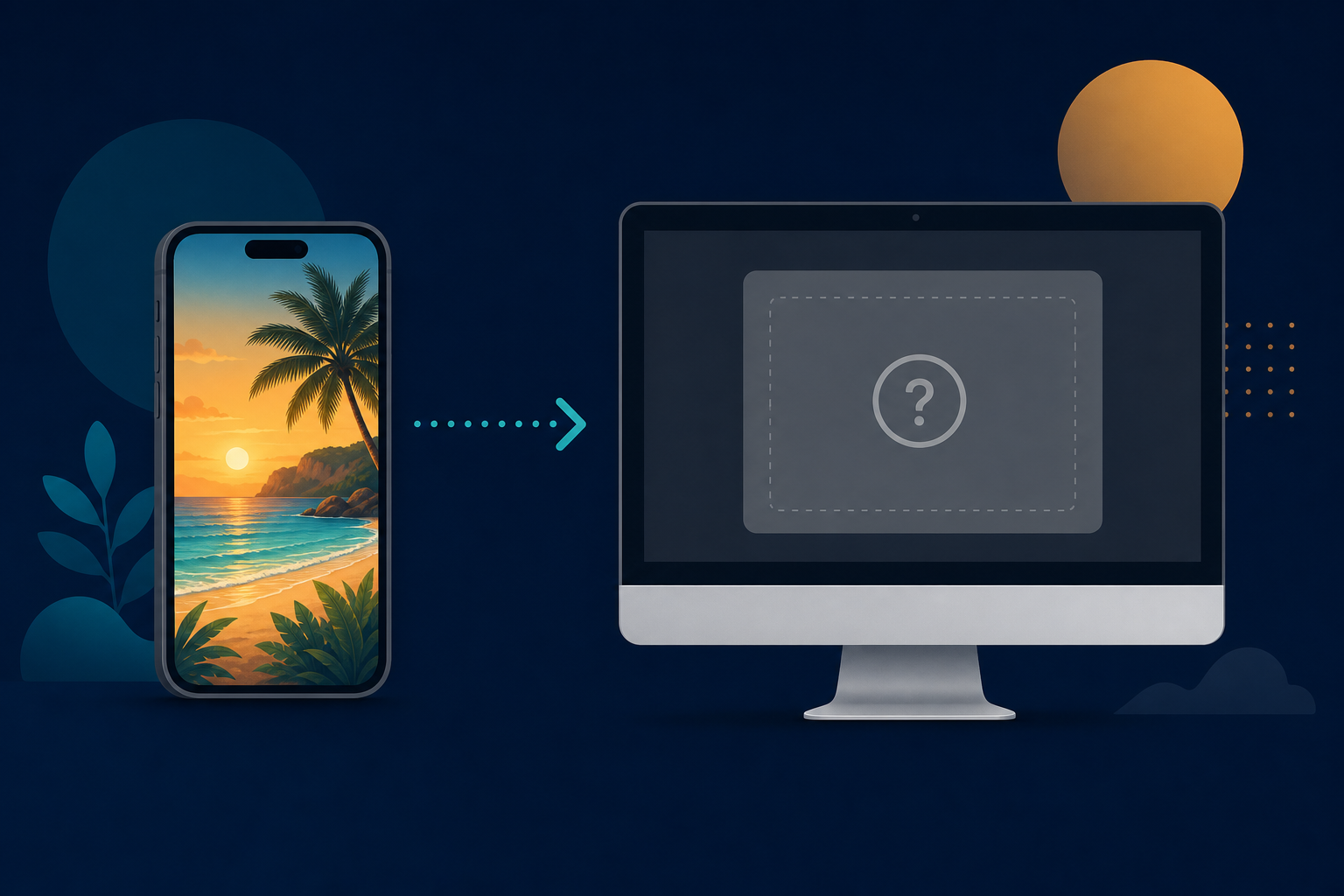
You copy a batch of photos off your iPhone, double-click one on your Windows PC, and instead of a picture you get an error, a gray box, or nothing at all. The file ends in .heic, and Windows acts like it has never seen it before.
What a HEIC file actually is
HEIC (High Efficiency Image Container) is the format Apple adopted in 2017 to store photos at roughly half the size of a JPEG with the same quality. The photo inside is completely valid — the problem is that older versions of Windows do not ship with the codec needed to decode it, so the image simply will not display.
- Windows Photo Viewer shows an error or a blank thumbnail.
- Email and web upload forms reject the .heic attachment.
- Older editing software does not list HEIC as an importable type.
- Microsoft’s optional codec from the Store sometimes fails or disappears after updates.
The simplest fix: convert to JPG or PNG
Rather than chasing codecs that may or may not work, the reliable fix is to convert the photos into a universal format. JPG is perfect for sharing and printing; PNG is best when you need a lossless copy.
Drop in your photos
Drag a folder of HEIC files onto Legacy File Converter, or right-click the folder in Explorer and choose Convert.
Pick JPG or PNG
The app recognizes the image family automatically and suggests JPG. Switch to PNG if you want a lossless copy.
Convert offline
Every photo is decoded and re-saved right on your PC. Nothing is uploaded, so private photos stay private.
Doing this a lot?
Point folder-watch at the folder you copy photos into, and new HEIC files convert to JPG automatically the moment they land.
Why not just use an online converter?
Free web converters make you upload your photos to a stranger's server, cap how many files you can do at once, and often watermark the output. For personal photos that is a privacy trade you do not need to make when the conversion can happen entirely on your own machine.
Summary
HEIC files are fine — Windows just speaks a different dialect. Convert them to JPG or PNG once and they will open anywhere, on any device, forever.
Related reading
Ready to open your old files?
Start free, then unlock unlimited conversions with a one-time $79.95 Standard license. Download the Windows installer — full features for up to 10 files.
Free trial
Full app features · up to 10 files
Windows 10 or 11
Same free trial as always — download the Windows installer and convert locally on your PC.
Direct Windows installer · offline MSI
Is this safe? — publisher, installer, and SmartScreen help
Requires Windows 10 or 11. No subscriptions. 100% Windows Native.