
Find Converted Photos by Place — Hover the Pin, See the Photo
Photo Map already puts geotagged pictures on a map. Hover thumbnails are a Plus-layer map feature in Conversion Library Plus and Filecite.

TL;DR
After you convert a HEIC pile or an old camera dump, Photo Map puts geotagged pictures on a map. Hover thumbnails are a Plus-layer map feature in Conversion Library Plus (main) and Filecite, so you can scan by place without opening fifty files. They do not appear in Standard Legacy File Converter. The map you have today still lets you click a pin to select the file.
Converted photos are still a flat folder
Legacy File Converter will turn iPhone HEIC files and other stills into JPG or PNG on this PC. The output folder looks modern. It is still a list of IMG_3842 names. You remember the house, the trip, the street — not the camera's filename.
The map you already know
Conversion Library Plus already maps geotagged photos from the converted set. Pins mark where the pictures were taken. Click a pin to select that file. That is local navigation from coordinates already in the file, not a hosted map product.
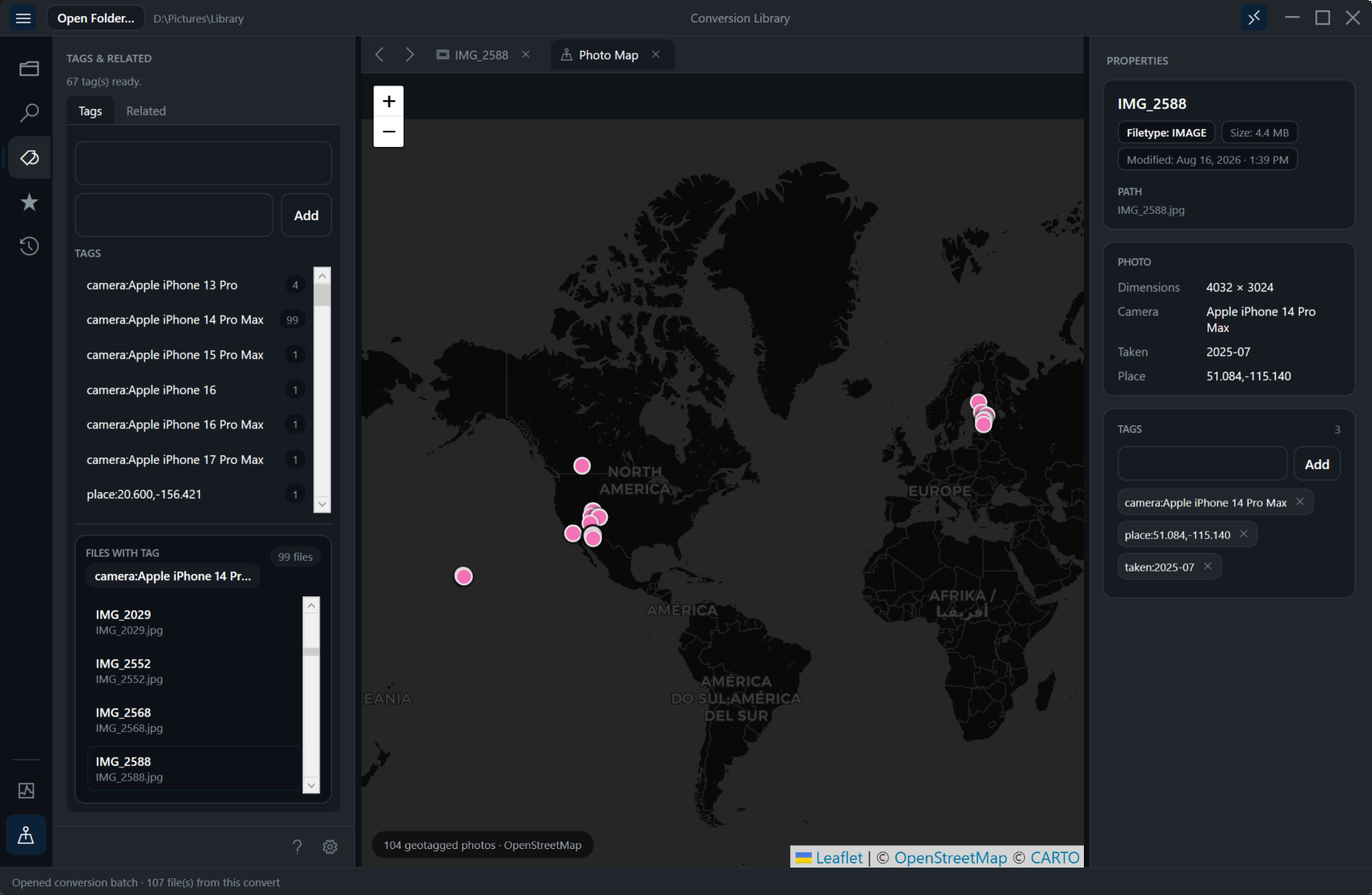
Use the map to find the vacation cluster or the house pictures by place. Use camera or year tags when you remember those instead of a filename.
Hover the pin, see the photo
Hover thumbnails are the new Plus/Filecite piece on top of that map. Rest on a pin. A thumbnail of that converted photo appears. You scan the cluster without opening fifty files, then click the one that is actually the porch, not the parking lot.
Hover lives in Conversion Library Plus and Filecite — not in Standard. We are not inventing a screenshot of that hover here. When you see it, it is on the same map you already use for place.
What this is for
- Family archives and inherited PCs full of iPhone HEIC files.
- Old camera dumps that already have GPS in the file.
- Mixed conversion batches where the photos and the letters share a place.
- Photos with no location in the file will not get a pin. That is expected.
- Not a Standard feature and not a cloud album.
After convert
Convert the HEIC or camera folder with Legacy File Converter
Get the stills into JPG or PNG on this PC.
Open the converted set in the library and use Photo Map for place
Pins mark geotagged photos. Click a pin to select that file.
Hover a pin to see the photo before you open it
Hover thumbnails are the Plus/Filecite layer on the same map. Scan the cluster by place without opening fifty files.
Keep family photos on this PC
Family photos stay on this PC. Do not upload the dump to a random website to "see them on a map."
Summary
Convert the photos. Map the ones that have a place. Hover thumbnails are how you scan that map without opening every file — a Plus-layer map feature in Conversion Library Plus and Filecite, not in Standard Legacy File Converter.
Related reading
Ready to open your old files?
Start free, then unlock unlimited conversions with a one-time $79.95 Standard license. Download the Windows installer — full features for up to 10 files.
Free trial
Full app features · up to 10 files
Windows 10 or 11
Same free trial as always — download the Windows installer and convert locally on your PC.
Direct Windows installer · offline MSI
Is this safe? — publisher, installer, and SmartScreen help
Requires Windows 10 or 11. No subscriptions. 100% Windows Native.