
History Lesson: What Is a .txt File? Why Old Text Files Show Strange Characters
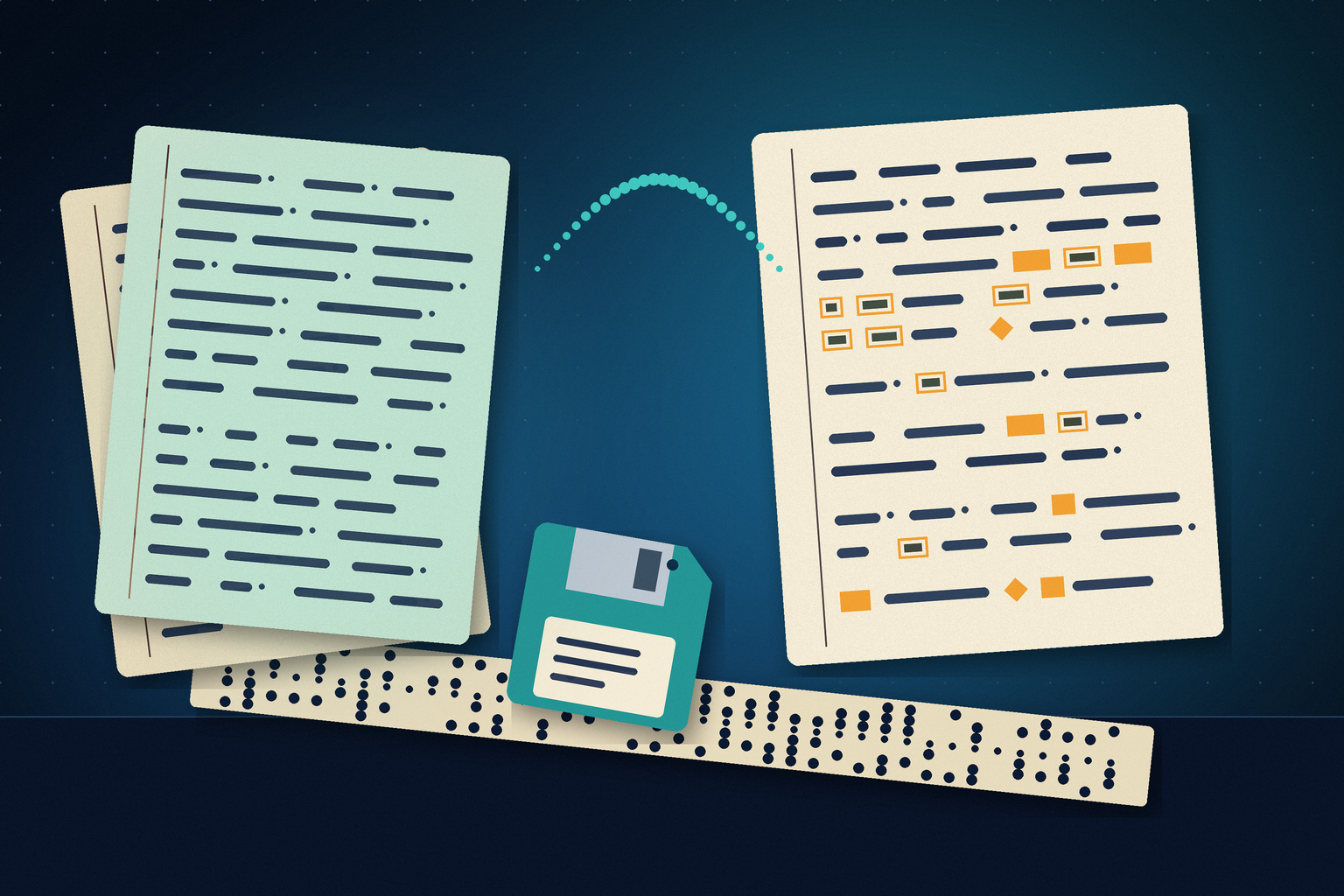
Plain text — bytes with no label for their encoding: numbered by ASCII in 1963, split into code pages by the PC, unified by UTF-8 in the 1990s, and still garbled whenever a program guesses wrong.
TL;DR
A .txt file is plain text: bytes and line breaks, with no fonts, no formatting, and no label saying which character encoding turns those bytes into letters. The first 128 values were fixed by ASCII (American Standard Code for Information Interchange), approved in June 1963, but PCs used the other 128 byte values for their own alphabets — code page 437 on the 1981 IBM PC, Windows-1252 and many more later. UTF-8, designed over a diner dinner in New Jersey in September 1992 and standardized as RFC 3629 in November 2003, finally covered every language in one encoding, yet Windows Notepad only made it the default for new files in 2019. A .txt file from before that — or one opened by a program that guesses wrong — shows strange characters because the bytes are fine and the program is reading them with the wrong table.
What is a .txt file?
Open a .txt file in any editor and you see only characters: letters, digits, punctuation, spaces, and line breaks. That is the whole format. There is no header, no font, no bold or italics, no page size, and no record of the language the text is written in. What the file really contains is a row of bytes — numbers from 0 to 255 — and the program opening it has to decide which character each number stands for. The “.txt” extension only tells Windows which program to offer; it says nothing about how the bytes should be read. That is why plain text is one of the most portable formats ever made, and also one of the easiest to misread.
Why does my .txt file show strange characters?
Because the program reading the file is using a different character encoding than the program that wrote it. The same letter can be stored as different bytes: é is the single byte E9 in Windows-1252, the code page Microsoft describes as the usual one for English and other Western European languages, but the two bytes C3 A9 in UTF-8. Open a UTF-8 file as Windows-1252 and every é turns into é. The curly apostrophe ’ (E2 80 99 in UTF-8) turns into ’. A UTF-8 file that starts with a byte order mark (BOM — explained below) begins with . Go the other way, opening a Windows-1252 file as UTF-8, and the lone byte E9 is not valid UTF-8, so the program shows the replacement character �.
Files from the DOS era go wrong differently. On the original IBM PC, the same byte could be yet another character: in code page 437, the DOS character set, byte 82 is é and the five bytes C9 CD CD CD BB draw the top edge of a box (╔═══╗). Windows reads those bytes as code page 1252 and shows ‚ and ÉÍÍÍ», so the word café comes out as caf‚ and a README’s boxed banner turns into letters.
No program can always get this right on its own. In 2007 Microsoft’s Raymond Chen showed Notepad’s dilemma with a two-byte file, D0 AE. Read as Windows-1252 it is the characters Ю; read as UTF-8 it is the Cyrillic letter Ю; read as UTF-16 (two bytes per character) it is a single Korean Hangul syllable, a different one for each byte order. He pointed out that all four readings are plausible. With no label inside the file, “strange” is simply what a wrong guess looks like.
Don’t save over a garbled file
If a program shows strange characters and you save the file, it writes the wrong characters back. Microsoft’s documentation warns that converting text from one code page to another can corrupt data, because the same value can stand for a different character on each page. Work on a copy, keep the original bytes, and try reading the file with another encoding before you edit anything.
1963: ASCII gives 128 characters a number
Before plain text could be a file, characters needed numbers that different machines agreed on. The American Standards Association set up a subcommittee for coded character sets in August 1960, and on 17 June 1963 it approved X3.4-1963, the American Standard Code for Information Interchange — ASCII. It was a 7-bit code: 128 values covering control characters, digits, punctuation, and the English alphabet. The 1963 edition was knowingly incomplete, with much of the table still unassigned. A 1967 notice about the revision approved on 7 July 1967, X3.4-1967, said most people on the ASCII project considered it the first real completion of the basic 7-bit code.
Seven bits do not fit a byte neatly. One of the earliest documents to say what to do about it is RFC 20, written by Vint Cerf in October 1969 for the early ARPANET, the research network that preceded the Internet. It proposed “standard 7-bit ASCII embedded in an 8 bit byte whose high order bit is always 0.” That unused eighth bit is where the trouble later starts: once a byte can hold 256 values, the other 128 are free for anyone to assign.
CR, LF, or both: how a line ends
ASCII also encoded the mechanics of the teletypewriter. As Chen explains, the carriage return (CR) moved the print head back to column 0 without advancing the paper, and the line feed (LF) advanced the paper one line without moving the head, so starting a new line took both. The 1968 edition of ASCII, reproduced in RFC 20, lets LF mean “New Line,” but adds that using it “requires agreement between sender and recipient of data.” That agreement never fully arrived. RFC 20 itself records that the first ARPANET sites disagreed: SRI used a period as its end-of-line character, while UCLA used the carriage return.
CP/M, MS-DOS, and Windows kept both characters, CRLF (the bytes 0D 0A). Unix settled on a single LF (0A). Microsoft’s 2018 announcement of new Notepad behavior lists the three conventions it now handles: Unix/Linux line endings (LF), Macintosh line endings (CR), and Windows line endings (CRLF). Until then, it said, Notepad could only display Windows line endings correctly, so a text file made on Unix or Linux looked garbled. The fix reached Windows 10 Insider builds in May 2018.
1981: the other 128 values go their own way
The IBM PC arrived in 1981 with 8-bit bytes and a 7-bit standard. David Bradley, one of its engineers, later recalled that the PC “used the ASCII character set, a radical change for an IBM product” — IBM’s earlier products used EBCDIC — and that with 128 new slots to fill, the team filled them with foreign-language letters, block graphics, and math and Greek symbols. He said he liked to describe the character set as developed in “a three person 4-hour meeting.” The result is code page 437, which Microsoft calls the usual OEM (DOS) code page for English: its upper half holds accented letters, line-drawing characters, and symbols.
Windows then built its own code pages. Microsoft’s documentation says Windows code page 1252 was originally based on an American National Standards Institute (ANSI) draft that eventually became ISO 8859-1, but it was implemented before the standard was final and is not exactly the same. Windows code pages are still commonly called “ANSI code pages,” though they are Microsoft’s own. Every one of them agrees with ASCII for values 0 to 127 and disagrees above that: the byte E9 is é in code page 1252, й in the Cyrillic page 1251, and ι in the Greek page 1253. Japanese and Chinese used double-byte code pages in which some bytes only mean something together with the byte that follows. Microsoft notes that no single code page covers everything Unicode does.
1992: Unicode, and a placemat in a New Jersey diner
Unicode took the opposite approach: one number for every character, so no more juggling code pages. In its first version, from 1991 to 1995, it was a 16-bit encoding; since Unicode 2.0 in July 1996 it has covered the range U+0000 to U+10FFFF. But a number is not a file. Storing 16-bit values directly in files clashed with the Unix software of the day, which relied on ASCII bytes such as the null byte and the slash, and in 1992 an X/Open committee was weighing a Unix-friendly way to store Unicode.
Rob Pike, then at Bell Labs, wrote in 2003 that UTF-8 “was designed, in front of my eyes, on a placemat in a New Jersey diner one night in September or so 1992.” Committee members had asked him and Ken Thompson to review their proposal. The two went to dinner, Thompson worked out the bit-packing, and afterward they phoned the committee. Pike says Thompson wrote the packing and unpacking code that night, and by Friday their operating system, Plan 9, was running only on what would be called UTF-8. Mail archives that his colleague Russ Cox dug up date the proposal to early September 1992.
UTF-8 stores each character in one to four bytes. The 128 ASCII characters keep their single-byte values, and no byte of any other character looks like ASCII, so a plain ASCII file is already valid UTF-8. Everything else takes two to four bytes, with leading bits that tell a reader how long the sequence is: é becomes C3 A9. François Yergeau’s RFC 3629 (November 2003) made it an Internet standard, and the Unicode FAQ calls it “the preferred form for Unicode text files.”
The BOM, and why Notepad had to guess
UTF-16 stores characters in 16-bit units, so a reader must also know the byte order. Unicode’s answer is a character, U+FEFF, placed at the very start of the file as a signature: the byte order mark. In UTF-8 it appears as the bytes EF BB BF, and the Unicode FAQ is explicit that there it has nothing to do with byte order — it only marks the file as UTF-8. The FAQ adds that some programs do not expect it (a Unix shell script’s first line, which starts with #!, is one example) and that a protocol such as “Microsoft conventions for .txt files” may require it. So a .txt file may start with a BOM or not, and when it does not, the program must guess.
Chen’s 2007 post on “the Notepad file encoding problem” explains why guessing never ends well. Files with a BOM are easy. Without one, most text files in the wild were 8-bit ANSI, some UTF-8 and UTF-16 files had no BOM either, and every rule he tried favored one group and broke another. His example: the command cmd /u /c dir >results.txt writes a UTF-16 file without a BOM.
Microsoft changed Notepad in two steps. In 2018 it learned Unix and Mac line endings. Then, in Windows 10 Insider build 18298 on 10 December 2018, Microsoft added the option to save UTF-8 without a BOM, made it the default for new files, and put the encoding in the status bar, saying that UTF-8 without a BOM is backward-compatible with ASCII and works better with the web, “where UTF-8 has become the default encoding.” The change reached everyone with Windows 10 version 1903, the May 2019 Update. Before it, a new Notepad file defaulted to ANSI.
2007 and after: UTF-8 takes over the web
Google reported that in December 2007 Unicode became the most frequent encoding on the web pages it indexed for the first time, overtaking both ASCII and Western European encodings within ten days of each other. W3Techs now reports UTF-8 on 99.1% of the websites whose encoding it can identify (November 2026). That is a statistic about websites. Text files sitting on old disks were never part of the shift, and nobody went back to re-encode them.
Why .txt files from old disks still look garbled in 2026
Today’s software assumes UTF-8, but a lot of text was written before that: DOS READMEs, early Windows notes, exports from programs that no longer run, and mail or log files saved as text. They are in the code page of whichever PC made them, which depended on its language and Windows version, and they carry no label. Add line endings from another system and the occasional UTF-16 file without a BOM, and the same .txt extension hides several unrelated formats. Many of these are legacy files that nobody can ask the original program about.
Legacy File Converter lists Plain text (.txt) among the documents on its Supported File Types page and converts them on your own Windows PC to modern formats such as DOCX, PDF, Markdown, or HTML — nothing is uploaded. Afterward, compare accented letters, quotation marks, and symbols against the original, and keep the original file. For other formats that are mostly text underneath, see History Lesson: What Is a .csv File?, where a missing BOM trips up Excel, and History Lesson: What Is an .rtf File?.
Related reading
Ready to open your old files?
Start free, then unlock unlimited conversions with a one-time $79.95 Standard license. Download the Windows installer — full features for up to 10 files.
Free trial
Full app features · up to 10 files
Windows 10 or 11
Free trial — convert up to 10 files. Download the Windows installer and convert locally on your PC.
Direct Windows installer · offline MSI
Is this safe? — publisher, installer, and SmartScreen help
Requires Windows 10 or 11. No subscriptions.