
Migrating Files Off an Old Windows PC
Retiring an XP or Windows 7 machine? Don’t leave your files trapped on it.
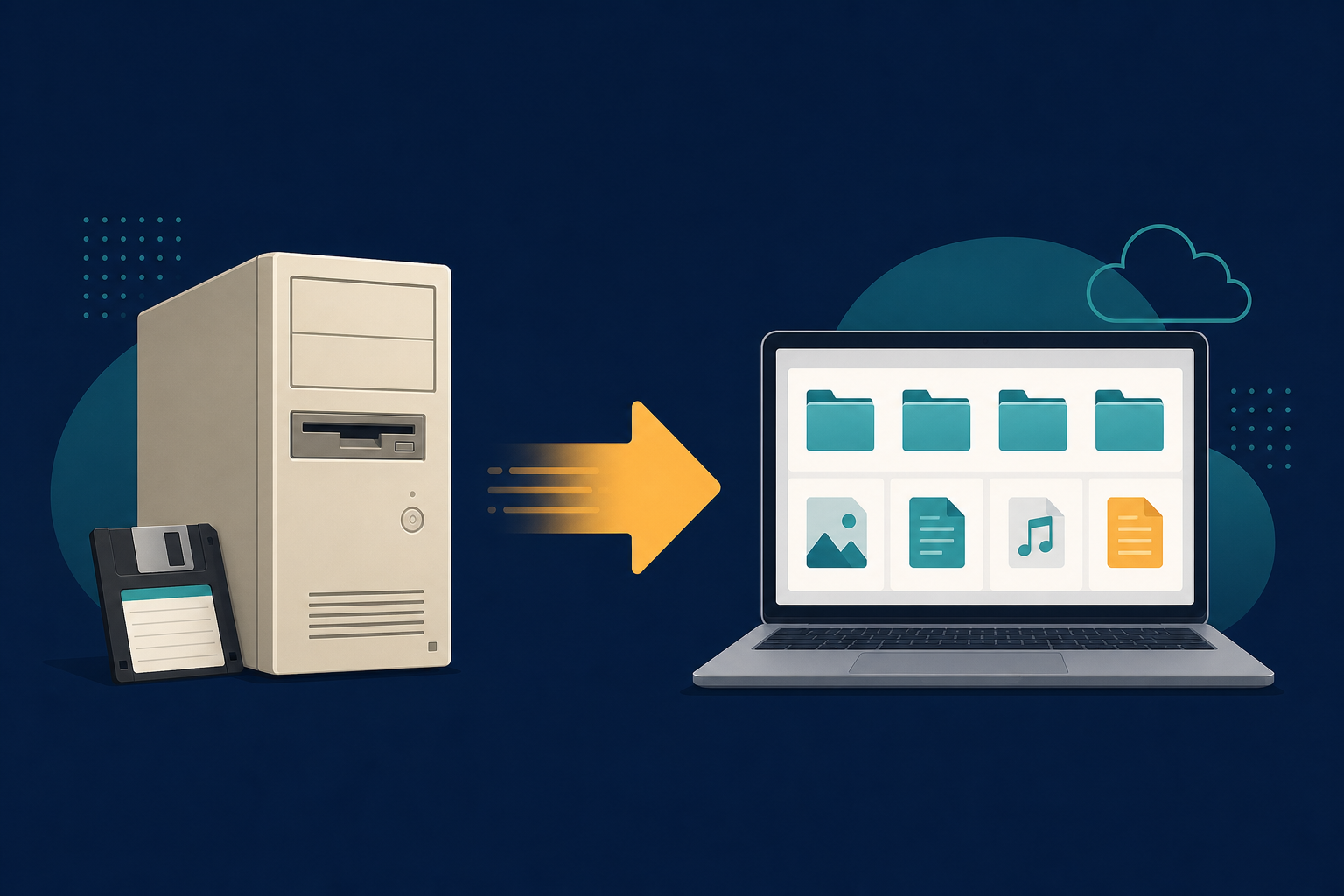
TL;DR
When you replace an old Windows PC, files created in long-gone software may not open on the new one. Convert them to modern, future-proof formats before (or right after) the move — all offline.
Setting up a new PC is exciting until you open an old folder and realize half the files will not open. The old machine had the right software; the new one does not — and reinstalling 20-year-old programs on Windows 11 is a non-starter.
What gets left behind
- WordPerfect, Works, and Ami Pro documents.
- Lotus 1-2-3 and Quattro Pro spreadsheets.
- Old presentation decks and proprietary image formats.
Future-proof the move in one pass
Copy everything over first
Move your files to the new PC (or an external drive) so they are all in one place.
Bulk-convert the legacy ones
Point Legacy File Converter at the folder and convert documents to DOCX/PDF, spreadsheets to XLSX, and images to JPG/PNG.
Keep both copies
Store the converted files for daily use and keep the originals archived just in case.
Summary
Do not let a new PC strand your old files. Convert them to modern formats during the migration and everything comes with you.
Related reading
Ready to open your old files?
Start free, then unlock unlimited conversions with a one-time $79.95 Standard license. Download the Windows installer — full features for up to 10 files.
Free trial
Full app features · up to 10 files
Windows 10 or 11
Same free trial as always — download the Windows installer and convert locally on your PC.
Direct Windows installer · offline MSI
Is this safe? — publisher, installer, and SmartScreen help
Requires Windows 10 or 11. No subscriptions. 100% Windows Native.