
Don't Paste the Archive Into ChatGPT. Convert Legacy Files to Markdown on This PC.
A mixed WordPerfect, Works, and Ami Pro pile belongs on disk as Markdown — not pasted into a cloud chat.
TL;DR
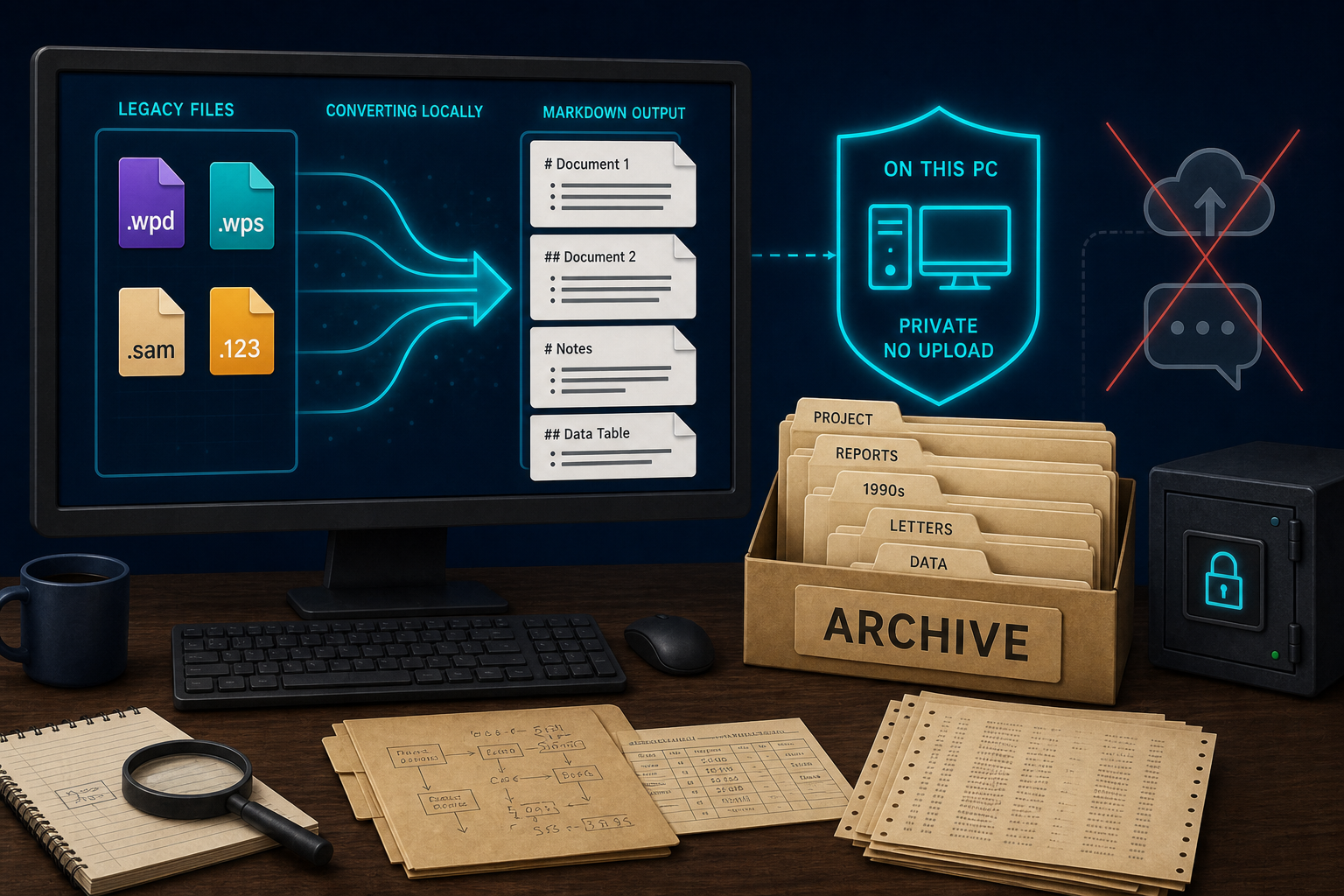
Do not paste a mixed WordPerfect / Microsoft Works / Ami Pro archive into ChatGPT (or any cloud chat). Convert the pile to Markdown (.md) on this PC with Legacy File Converter, keep the folder structure, then use those files with your own local large language model (LLM). Nothing is uploaded.
Why you should not paste a legacy archive into ChatGPT
People reach for a cloud chatbot when Windows will not open old files. That impulse is understandable — and wrong for a private archive. A mixed legacy pile is not one neat paragraph. It is folders of .wpd, .wps, .sam, Lotus sheets, and whatever else an old project or estate left behind. Pasting, zipping, or uploading that pile into ChatGPT (or Claude, or a random “convert for AI” site) means a copy leaves the building.
- Privacy: contracts, medical notes, family letters, and client work should not become someone else’s temporary copy.
- Shape: chat paste limits and upload caps are built for a few modern files, not a decade of nested folders.
- Fidelity: binary formats are not “text you forgot to copy.” You need a real conversion step first.
- Control: once a file is on a cloud converter or chat server, you did not write the retention policy.
Cloud chat is not a converter
A chatbot that accepts uploads is still an upload. If the job is “open these old files without sending them anywhere,” convert locally first.
Convert mixed legacy files to Markdown on this PC
The honest workflow for a private local LLM is boring — and that is the point. Dump the mixed archive to Markdown on the same Windows PC that already has the files. Keep the folder tree so you still know which matter, decade, or client a file belonged to. Then point your local model tooling at that Markdown tree. Legacy File Converter is the conversion step; it is not your model, and it does not claim to host retrieval-augmented generation (RAG) for you.
Product copy on this site is clear: besides like-for-like outputs (DOCX, XLSX, and the rest), you can send supported content to three universal formats — PDF, Markdown (.md), and HTML. Markdown is the one that fits clean text workflows and local LLM prep. PDF freezes a page; Markdown strips layout noise into structured text a model can read without fighting page furniture.
What “mixed” means here
This is not a WordPerfect-only guide. Real archives mix formats: WordPerfect letters next to Microsoft Works documents, Ami Pro .sam files, Lotus .123 sheets, Quattro Pro workbooks, and more. The job is one folder tree → one Markdown tree, on this PC — not twenty trips through a single-format web tool.
- Documents: WordPerfect (.wpd), Microsoft Works (.wps), Ami Pro (.sam), and other supported word-processor formats from the 80s–2000s — treated here as legacy files, not disposable junk.
- Spreadsheets: Lotus 1-2-3, Quattro Pro, and similar sheets that Excel will not open cleanly.
- Universal target: Markdown (.md) for local LLM / notes workflows; PDF or HTML when those jobs fit better.
Format chooser vs this workflow
Our earlier guide “One Folder, Three Universal Formats” explains when to pick PDF vs Markdown vs HTML. This article is the next step: the mixed-archive workflow that lands on Markdown for a private local model — without uploading.
A practical on-disk workflow
Collect the archive on this PC
Copy the estate dump, old project share, or backup disk into one root folder you control. Do not start by uploading anything.
Point Legacy File Converter at that folder
The app scans subfolders for supported legacy files. Batch-convert the mixed pile in one pass — documents, sheets, and the rest it already handles.
Choose Markdown (.md) as the universal output
Use Markdown when the goal is clean text for a local LLM, notes, or a text pipeline. Keep folder structure so paths still mean something after conversion.
Keep originals beside the new .md files
Until you trust the results, retain the source binaries. Conversion is not a reason to delete the only copy.
Feed YOUR local model — on your terms
Use whatever local LLM tooling you already run. This article does not invent model names, fine-tuning recipes, or parameter counts. Convert locally; you own the next step.
What this is not
- Not “paste the archive into ChatGPT and hope.”
- Not a recommendation to use cloud convert sites as the path for private piles.
- Not WordPerfect-only RAG content cloned from another site — this is the mixed Legacy File Converter archive.
- Not Conversion Library Plus as an AI layer. Plus is on-device index / search / preview / bookmarks / saved libraries / review packs.
- Not Filecite “Ask the archive” as a shipping feature you can use today — that product is coming soon.
If you later build retrieval-augmented generation (RAG) yourself — embeddings, a local vector store, citations — start from clean Markdown you already converted offline. The converter’s job ends when the .md files are on disk.
Soft next step
Legacy File Converter runs on Windows 10/11. It batch-converts mixed legacy formats locally, can mirror folder structure, and can output Markdown alongside other modern targets. No upload. No original WordPerfect / Works / Ami Pro install required for the formats it supports.
Stay on this PC
Convert the pile to Markdown here. Then open those files in the local tools you already trust. That is the whole recommendation.
Summary
A mixed legacy archive is a folder problem, not a chat-paste problem. Convert WordPerfect, Works, Ami Pro, and the rest to Markdown on this PC, keep the tree, and use your own local LLM. Do not upload the pile to ChatGPT to “make it AI-ready.”
Convert your files
Related reading
Ready to open your old files?
Start free, then unlock unlimited conversions with a one-time $79.95 Standard license. Download the Windows installer — full features for up to 10 files.
Free trial
Full app features · up to 10 files
Windows 10 or 11
Free trial — convert up to 10 files. Download the Windows installer and convert locally on your PC.
Direct Windows installer · offline MSI
Is this safe? — publisher, installer, and SmartScreen help
Requires Windows 10 or 11. No subscriptions.