
Convert the Old Files Trapped Inside Your ZIP and 7z Archives
Stop unzipping by hand — point the converter at the archive and let it reach inside.
TL;DR
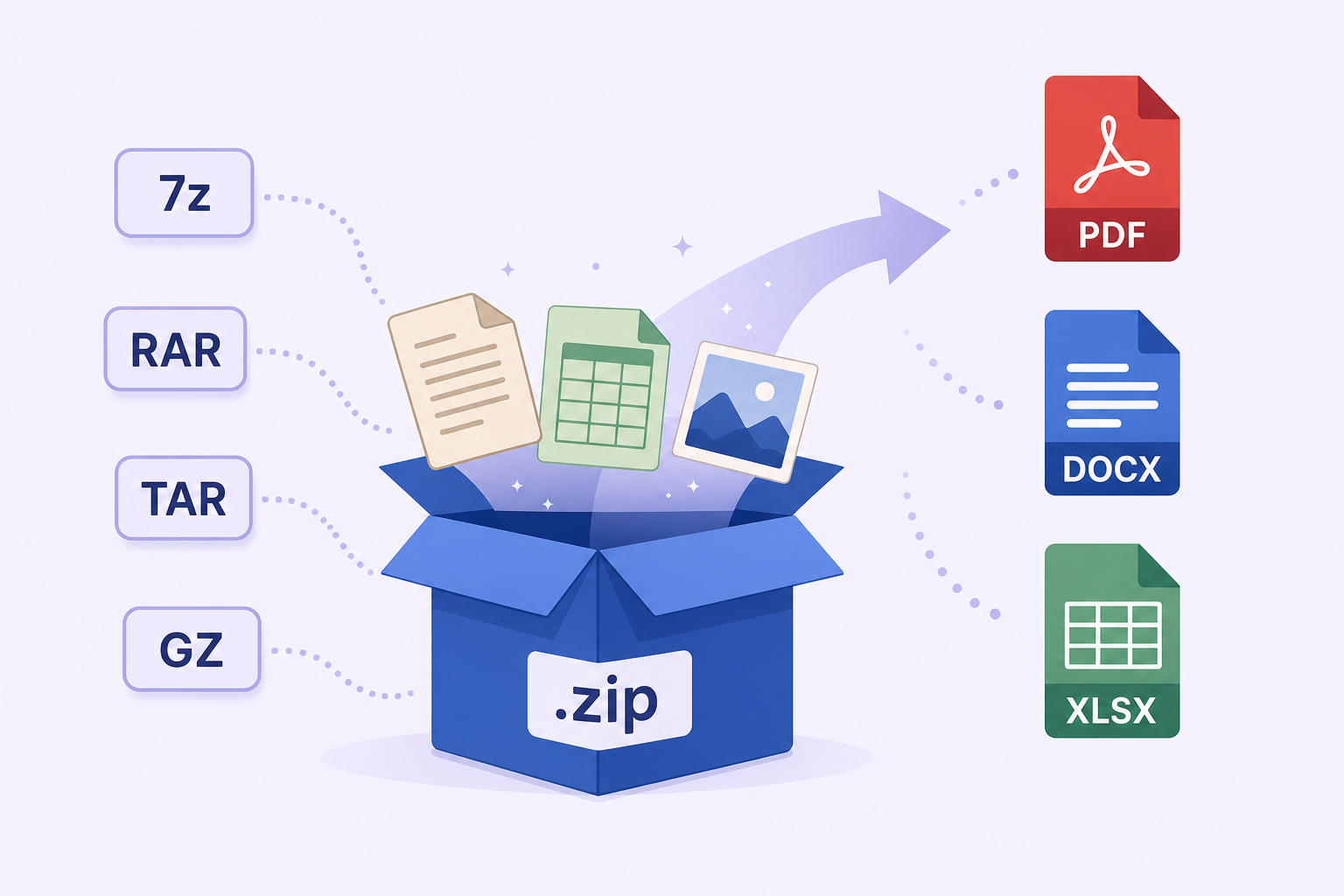
Legacy files almost always show up zipped — in ZIP, 7z, RAR, TAR, GZIP, BZ2, XZ, LZIP, Zstandard, or WIM archives. Turn on Look inside archives and Legacy File Converter expands them locally, converts the old documents, spreadsheets, and images inside, and leaves the original archive completely untouched.
When someone hands you a decade of old records, they rarely come as loose files. They arrive as a backup: a `Archive.zip`, a `Documents.7z`, a `backup.tar.gz` off an old server. Inside are exactly the WordPerfect, Lotus 1-2-3, Works, and HEIC files you need to modernize — but they are locked behind a layer of compression first.
The manual way is slow and error-prone
The usual routine is to unzip everything to a temporary folder, hunt through the nested subfolders for the files that actually matter, convert them, and then try to remember which output belonged where. With nested archives and hundreds of files, it is easy to miss things or scatter converted files across your disk.
- Unpacking by hand loses the original folder structure inside the archive.
- 7z and RAR need a separate extraction tool installed first.
- It is easy to convert the wrong copy, or miss files buried several folders deep.
- Uploading a whole archive to an online tool exposes everything inside it at once.
Let the converter reach inside instead
Legacy File Converter can read straight into an archive, find the convertible files, and process them in place — no separate unzip step, and the archive itself is never modified. Reading is handled by a built-in, pure-software engine, so even 7z and RAR work without installing anything extra, and it all runs offline.
Turn on “Look inside archives”
In the source options, tick the archive checkbox. The app will start expanding supported archives as it scans.
Pick where the results go
Save into a “(converted)” folder next to the archive, follow your normal destination setting, or re-pack the results into a fresh zip.
Convert in one pass
Every legacy file inside — across nested folders — is converted, mirroring the archive’s internal structure so nothing gets jumbled.
Which archive types are supported
- Mainstream: ZIP, 7z, RAR, TAR, and gzip-compressed TAR (.tar.gz / .tgz / .gzip).
- Compression streams: BZIP2 (.bz2 / .tar.bz2), XZ (.xz / .tar.xz), LZIP (.lz / .tar.lz), and Zstandard (.zst / .tar.zstd).
- Windows backups: WIM (.wim) — Windows Imaging archives from backup images and install media.
- Nested archives are followed automatically, up to a safe depth.
- Password-protected entries are safely skipped rather than failing the whole job.
Your originals are safe
The source archive is opened read-only and never altered. Converted files are always written somewhere new, so there is no risk to the backup you started with.
A note on safety
The extractor guards against malicious archives — it blocks path-traversal (“zip-slip”) entries and caps total size and file count so a booby-trapped archive can’t fill your disk.
Summary
Old files travel in archives. Instead of unzipping by hand and converting the pieces one at a time, let Legacy File Converter look inside ZIP, 7z, RAR, TAR, GZIP, Zstandard, WIM, and the rest, convert everything in a single pass, and keep your original archive exactly as it was.
Related reading
Ready to open your old files?
Start free, then unlock unlimited conversions with a one-time $79.95 Standard license. Download the Windows installer — full features for up to 10 files.
Free trial
Full app features · up to 10 files
Windows 10 or 11
Same free trial as always — download the Windows installer and convert locally on your PC.
Direct Windows installer · offline MSI
Is this safe? — publisher, installer, and SmartScreen help
Requires Windows 10 or 11. No subscriptions. 100% Windows Native.